Email Verification
Verify Login
By clicking "Verify", you agree to our Terms of Service and Privacy Policy.
Save permanent copies of articles, newsletters, RSS feeds, and files in one place. Read them later on your computer, smartphone, tablet or Kindle.
Save your web articles, newsletters, RSS feeds, and files into one private archive you can read later.
Save from the browser, mobile or email without changing how you read.
Import from other read-it-later apps or manually via file imports.
Your content stays with you even after a page changes or disappears later.
Keep supported files like PDFs, EPUBs, images and more beside saved articles.
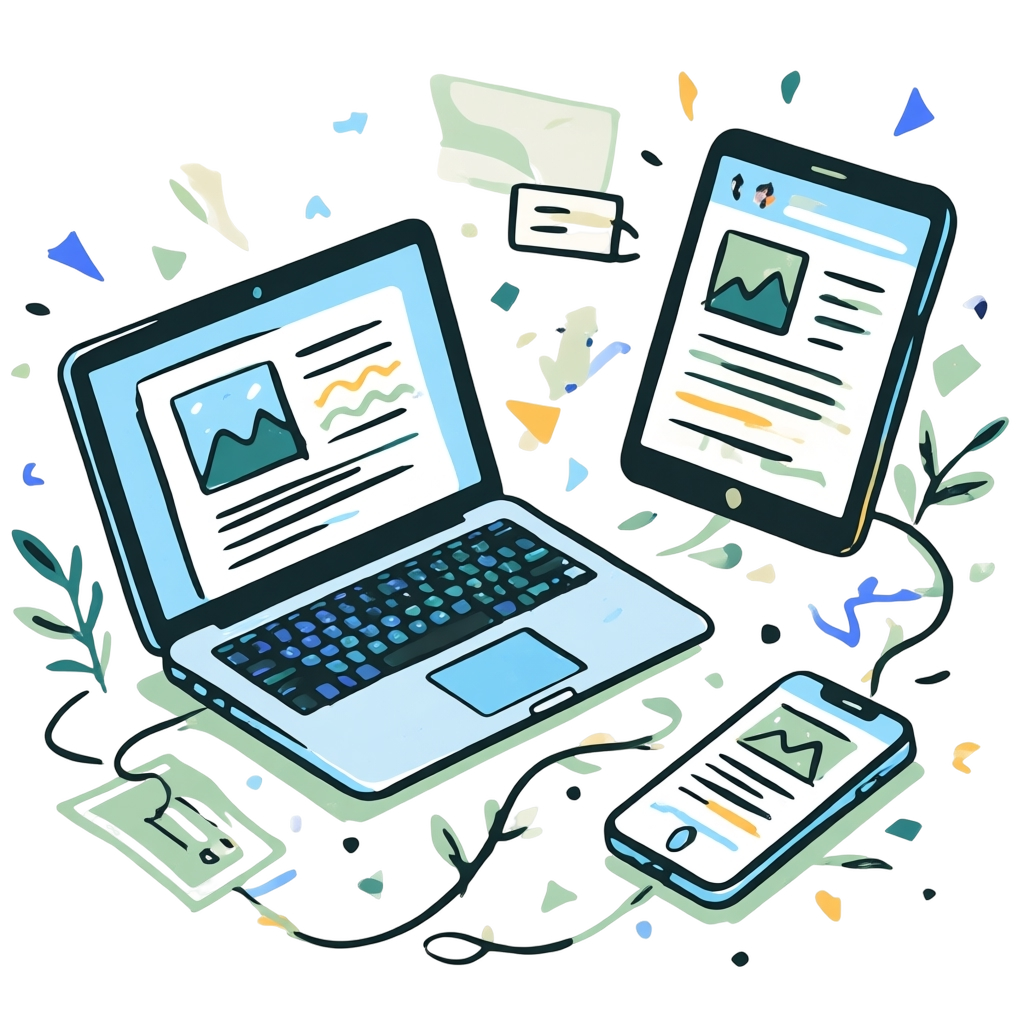
One synced library follows you across web and mobile. Offline access, highlights, notes, summaries, and listening tools help you switch modes without losing context.
Move between desktop and phone with the same saved items instead of managing separate reading lists.
Download what you need before trips or weak connections to keep reading without interruption.
Highlight passages and take notes in the reader, then revisit them later in one searchable place.
Use AI summaries for quick scans or text to speech when you would rather listen than read on the go.
Turn saved content into one-time, recurring, or automatic deliveries. Control exactly what gets sent and when.
Send a reading bundle right away or build recurring deliveries around your daily or weekly routine.
Use tags, sources, timing, and other delivery rules so only the right items reach your device.
Deliver newsletters, filtered RSS feeds, and supported files instead of limiting yourself to web links.
Send compiled issues to other supported email destinations too, including non-Kindle reading setups.